Set Up Hugo with Go

To build Hugo sites locally, install Homebrew and Hugo. You do not need to install Go to use Hugo as your static site generator. These instructions are for a Mac or Linux system, but you can also read the Windows installation instructions on the gohugo.io site.
Since Hugo is built on Go, you can use the binary for your operating system. No need to maintain a development environment. Upgrades are easy too, get a new binary and install it and you’re upgraded.
Prerequisites
- Windows, MacOS, or a Linux-based environment.
- On MacOS, you will install Homebrew.
- On Windows, you must install Docker.
- On Windows, you must install Git for Windows which includes Git Bash.
Set up Hugo on Windows with Git Bash and Docker
You can also set up Docker and then use this Docker image to install Hugo. With the Docker image, you set up alias commands for hugo running in Docker, but can work in Git Bash and follow this tutorial using the same hugo commands in Git Bash on Windows.
Set up Hugo on MacOS
- Install Homebrew. See the Homebrew site for instructions.
-
Use Homebrew to install Hugo.
$ brew install hugo -
Verify the
hugoinstallation by checking the version value.$ hugo version Hugo Static Site Generator v0.74.3/extended darwin/amd64 BuildDate: unknown
Starting a Hugo site
For a Hugo static site, you can choose your specific theme after you create the source files. The theme we’ll use in this tutorial is hugo-theme-learn. To start a new site in the current folder, run:
   $ hugo new site docs-as-code
   $ cd docs-as-code
- Take a look at the files created in the directory with an
lscommand:$ ls -A archetypes content layouts themes config.toml data static - Initialize the current directory as a Git repository, which will enable you to bring the theme in as a Git submodule.
$ git init Initialized empty Git repository in /Users/annegentle/src/src/hugo-example/.git/ - Edit
config.tomlin any text editor you like to get started. Choose a title for your site and the theme, in our case,hugo-theme-learn. The theme name in your configuration file must match the name of the specific theme directory inside the/themesdirectory, so we will add those files in the next step.baseURL = "http://example.org/" languageCode = "en-us" title = "Learning Hugo Site" theme = "hugo-theme-learn" - To get the theme files in the
/themesdirectory, and keep them updated, use agit submodulescommand to get the required theme files as well as keep them updated.$ git submodule add https://github.com/matcornic/hugo-theme-learn.git themes/hugo-theme-learn - For Hugo, the
contentfolder contains the site source content. For your home page, make an_index.mddocument in thecontentfolder and write it with Markdown content. Switch back up one level since you just cloned the theme files.$ cd .. $ hugo new _index.md - Next, add a new page using the
hugocommand,hugo new:$ hugo new prerequisites.md /Users/agentle/src/hugo-example/doc-machine/content/prerequisites.md created - You can keep adding files with the
hugo newcommand so that the Markdown files are pre-populated with the front matter:--- title: "Prerequisites" date: 2018-06-16T10:38:19-05:00 draft: true ---
Build a Hugo site locally
Once you’ve prepared your local system, you can build locally and review the site in your browser.
For Hugo, it’s important to know that draft pages are only served when using the -D parameter.
-
Run the
hugo servercommand with the-Dparameter (to serve draft pages).$ hugo server -D | EN +------------------+----+ Pages | 12 Paginator pages | 0 Non-page files | 0 Static files | 67 Processed images | 0 Aliases | 0 Sitemaps | 1 Cleaned | 0 Total in 48 ms Watching for changes in /Users/agentle/src/hugo-example/doc-machine/{content,data,layouts,static,themes} Watching for config changes in /Users/agentle/src/hugo-example/doc-machine/config.toml Serving pages from memory Running in Fast Render Mode. For full rebuilds on change: hugo server --disableFastRender Web Server is available at http://localhost:1313/ (bind address 127.0.0.1) Press Ctrl+C to stop - Open the Web Server URL,
http://localhost:1313/in your local browser to view the site. (By default, the theme may be purple instead of green.)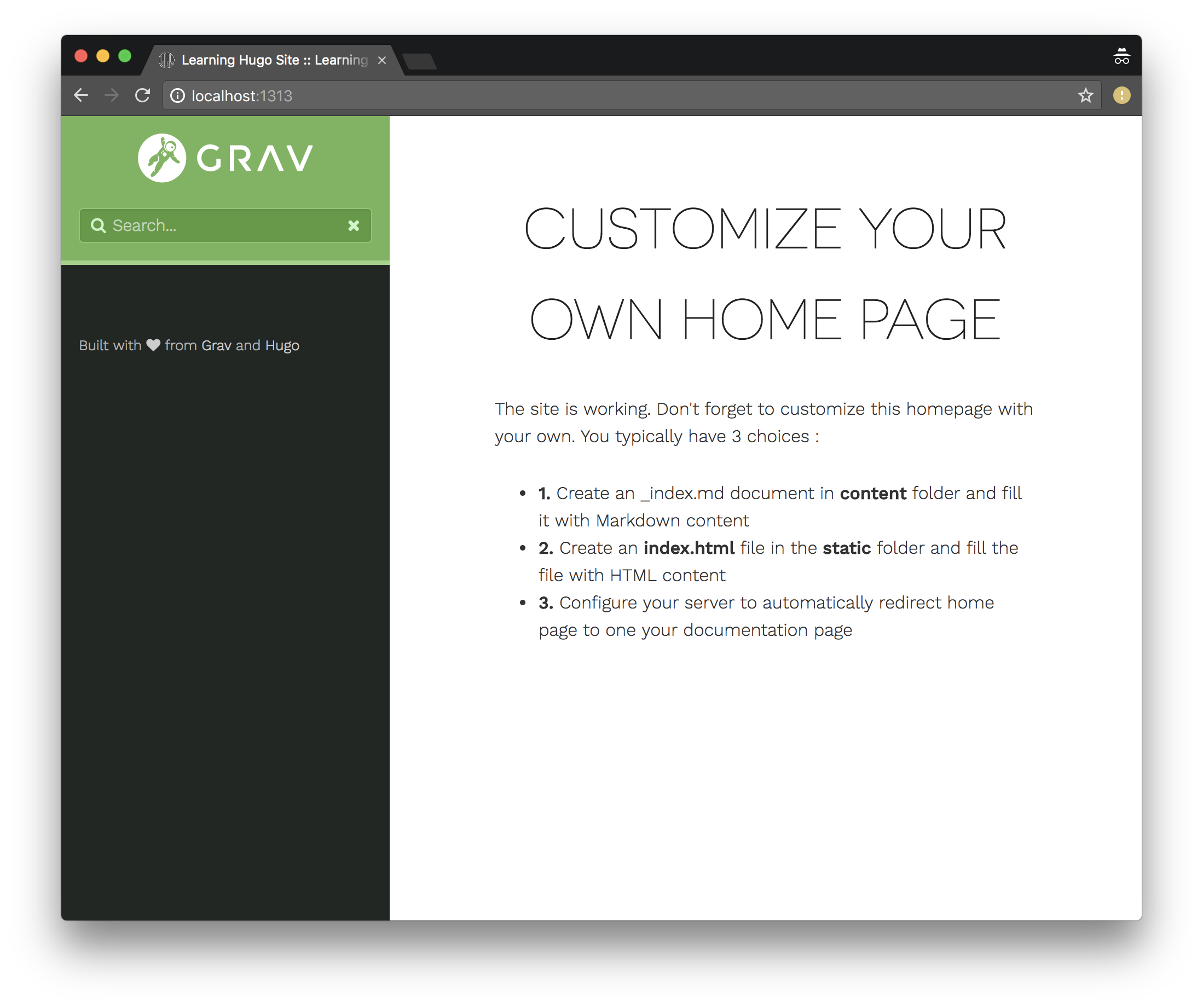
- Press
Ctrl+Cin the server terminal to stop the Hugo server. - You can add your files to a Git commit. Refer to Working with content in GitHub repositories for a documentation workflow with your Hugo site.
Modify the Hugo theme
By default, the Hugo Theme “Learn” has a purple sidebar. How about changing the color and logo displayed in the sidebar? Here’s how. While we’re at it, let’s make sure to configure the search tool that works best with this theme.
- Edit the
config.tomlfile and add these lines to theconfig.tomlfile. This example shows setting thethemeVarianttogreen.[params] themeVariant = "green" - You can make sure that the theme works with the
lunr.jsJavaScript search engine by adding these lines to theconfig.tomlfile.[outputs] home = [ "HTML", "RSS", "JSON"]
What’s next
- Working with content in GitHub repositories
- Continuous Deployment (CD) for Documentation Sites
- Set Up Automated Tests for Docs
Evaluating options
- Evaluating Static Site Generator themes
- Evaluating table layouts and formatting
- Evaluating Static Site Generator search options